


Restoring Windows from a backup is undoubtedly the fastest way to get your computer out of a crash or corrupt, and both cloning and imaging can help us create such a backup. Well, which method should we choose?
Clone Windows OS vs. Image Windows OS
Clone:
When we are cloning Windows, everything, including system files, settings, apps, and so on, will be copied without changing their size and properties. When original OS crashed or corrupted, to use the backup, you only need to set the computer boot from the target disk, and no other operations are required. It is very easy to handle this method, thus saving us much time. Nevertheless, another hard disk and the same capacity are required to save the clone, which wastes storage space to a large extent.
Image:
Both Windows itself and third party software can help create such a kind of images, and the image can be saved to the same hard disk as well as a different drive. Compared with cloning Windows OS, imaging is more like creating a .zip file (compress file size) rather than copying files with the same size so that lots of space can be saved. In addition, on one hard disk we can create multiple images, which would be economical. However, to use this kind of backup, you need to boot from your backup program’s emergency boot disc, and restore the drive’s contents from the backup, or restore from an installation disc, repair disc, or pre-installed options. Much more time and operations are needed.
Summary: different ways have different advantages and disadvantages, so users had better choose the most appropriate one by considering actual demands.
Next, we are going to show users how to copy Windows OS by using the freeware MiniTool Partition Wizard.
Clone Windows OS with MiniTool Partition Wizard
After running and launching the free drive clone software successfully, we can see its main window:
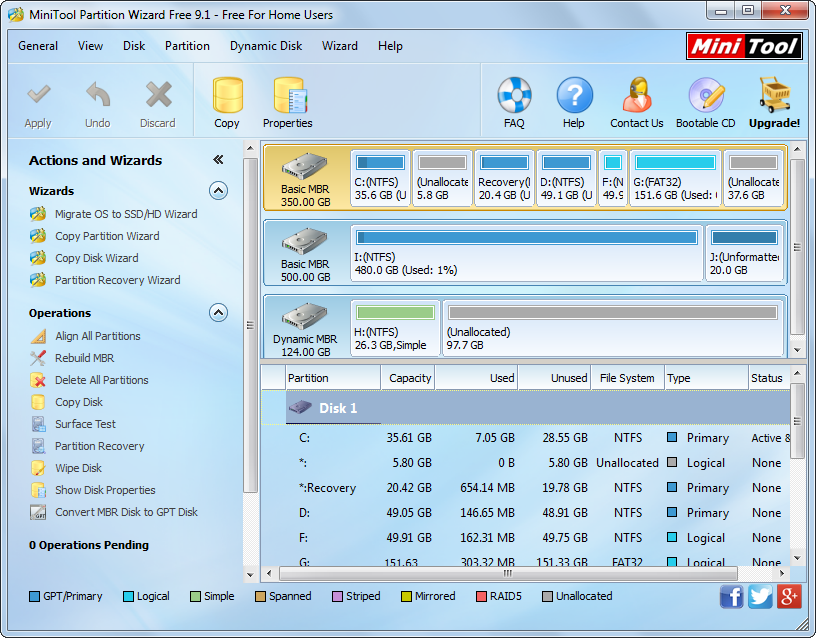
Here, to copy Windows OS, we can choose the function “Migrate OS to SSD/HD Wizard”. Of course, if you want to clone the entire hard disk, “Copy Disk” is needed.
Then, select the target disk to clone Windows to and click “Next” After that, 3 copying options are shown:

Just select the desired one and click “Next” to get a boot note. Read the note and click “Finish” to go back to the main window:

At last, click “Apply” button to make all changes performed. Tip: to clone a running Windows OS requires a reboot, and users just need to do as told.
Now 2 ways to create a backup for Windows OS have been introduced. If you need to make a backup for your system, just choose the needed one in accordance with practical situations.